
RFTools · Early game
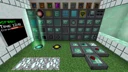
RFTools Modular Storage & Tier 3 Crafting Room
This setup provides a compact, powerful early-game storage and autocrafting hub using RFTools before you have access to complex digital networks like Applied Energistics 2. By linking high-capacity Modular Storage blocks to a central Storage Scanner, you can access, search, and craft from all your inventories through a single unified interface. An integrated Crafter Tier 3 automatically processes incoming raw materials like cobblestone, redstone, and ores into compact blocks or refined goods to keep your storage clean and efficient.
- Footprint
- 5x4x3 blocks
- Power
- Low continuous draw (~50-200 RF/t depending on crafting speed; check JEI)
- Throughput
- Instant item retrieval; fast batch crafting
- Difficulty
- beginner
Flow diagram
How items, fluids and energy move through the setup, left to right.
Swipe sideways to see the whole diagram
Materials
| Item | Count |
|---|---|
| Storage Scanner | 1 |
| Modular Storage | 4 |
| Tier 3 Storage Module | 4 |
| Crafter Tier 3 | 1 |
| Coal Generator | 1 |
| Low or Medium Powercell | 1 |
| Powercell Card | 2 |
| Hopper | 2 |
| Chest | 1 |
| Smart Wrench | 1 |
Build it step by step
1Establish the Power Backbone
Place your Powercell in the center of the back wall and put the Coal Generator directly adjacent to it. Use your Smart Wrench to set the Powercell faces touching the generator to Input, and the faces that will touch the Storage Scanner and Crafter to Output. Load the Coal Generator with coal or charcoal to build up an initial energy buffer.
2Install the Storage Scanner
Place the Storage Scanner directly in front of or next to the Powercell so it receives RF power automatically. This block will serve as your primary crafting and item retrieval terminal. Make sure the front face is easily accessible from your main workspace.
3Set Up the Modular Storage Bank
Place the four Modular Storage blocks in a 2x2 grid adjacent to the Storage Scanner. Open each Modular Storage block and insert a Tier 3 Storage Module into the top-left slot, which grants capacity for up to 300 stacks of items per block (check JEI for exact recipe tiers). You can optionally add an Ore Dictionary Storage Type Module if you want to sort items automatically.
4Position the Crafter Tier 3
Place the Crafter Tier 3 on the other side of the Powercell so it also draws RF directly without needing external cables. Attach a Hopper pointing into the top or side of the Crafter, and place your Dump Chest on top of that Hopper. Place the second Hopper underneath the Crafter, pointing directly into one of your Modular Storage blocks.
5Link the Storage Network
Open the Storage Scanner GUI, adjust the scan radius slider to cover your room (a radius of 3 to 5 blocks is plenty), and click the Scan button. In the list of detected inventories on the left, click each Modular Storage block and press the Star icon to mark it as 'Routable'. Ensure your Dump Chest is NOT marked as routable so the scanner does not accidentally pull unprocessed items.
6Program the Crafter Recipes
Open the Crafter Tier 3 GUI, which supports up to 8 different recipes simultaneously. Select a recipe slot, lay out a compacting recipe in the 3x3 grid (such as 9 Redstone to 1 Block of Redstone), and set the output mode to 'Ext' (External) so finished blocks go to the output buffer. For multi-step recipes like turning Wood Logs into Planks and then into Sticks, set the Plank recipe to 'Int' (Internal) and the Stick recipe to 'Ext', then click 'Apply' after each recipe.
How it works
The core of this design is the Storage Scanner, which acts as a wireless bridge between all nearby inventories without requiring a single item pipe or cable. When you mark your Modular Storage blocks as routable, the Scanner aggregates their contents into one searchable list when you click the top 'Star' inventory entry. Furthermore, any items you insert directly into the Storage Scanner's input slot are automatically teleported into the first available routable Modular Storage block, prioritizing stacks that already contain that item.
The Crafter Tier 3 handles bulk preprocessing and recursive crafting before items ever enter the main storage pool. When you return from a mining trip, you throw raw bulk items like redstone, lapis, iron ingots, or cobblestone into the Dump Chest. The input hopper feeds these into the Crafter, which rapidly compacts them into storage blocks or refined components using its internal buffer, and the bottom hopper pushes the finished products into a routable Modular Storage block where they immediately become visible inside the Storage Scanner.
Upgrades and scaling
- Craft a Storage Control Screen Module and a Tablet, then link the Tablet to the Storage Scanner for wireless cross-dimensional access to all your items.
- Add Filter Modules inside the Modular Storage blocks and the Crafter Tier 3 to strictly control which items are allowed into specific storage units and prevent input buffer clogging.
- Install XNet later in your playthrough to connects multiple Crafter Tier 3 units and Furnaces directly to the Storage Scanner for true on-demand autocrafting.
Common mistakes
- Forgetting to click the 'Apply' button in the Crafter Tier 3 GUI after arranging a crafting recipe, which causes the recipe to be erased as soon as you select another slot.
- Setting all Crafter recipes to 'Ext' instead of 'Int' when doing multi-step crafting, causing intermediate items to eject into the output hopper before the second recipe can use them.
- Removing a Storage Module from a Modular Storage block without checking its contents first; while the items remain safely stored inside the module item itself, it can be easy to misplace which module holds which items.
- Leaving the Dump Chest or Crafter marked as 'Routable' inside the Storage Scanner, which causes the Scanner to dump random items into your crafting input buffer.
FAQ
Why can't I see any items in the Storage Scanner after scanning?
You must click the top entry with the Star icon in the left-hand inventory list, and ensure your Modular Storage blocks have been toggled with the Star button to make them routable.
How do I stop the Crafter from using up the last item in its internal buffer and losing its slot reservation?
Click the 'R' (Remember) button in the Crafter GUI once you have arranged your input items in the internal buffer; this locks the ghost slots so only those specific items can enter those slots.
What happens if the Storage Scanner loses RF power?
Your items remain completely safe inside the physical Modular Storage blocks and can still be accessed manually by opening each block, even if the Scanner offline.