
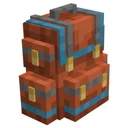
Sophisticated Backpacks · Getting started · Beginner
Sophisticated Backpacks Getting Started Guide: Crafting, Tiers & Controls
Running out of inventory space during a deep mining trip or long exploration can quickly ruin your momentum. This guide teaches you how to craft your first Sophisticated Backpack, upgrade it through every metal and gem tier, and master the wearable hotkeys and built-in inventory management tools. By the end, you will have a massive, portable storage system that you never even have to hold in your hands to use.
What you need
- Sophisticated Backpacks and its required dependency, Sophisticated Core
- Curios API or Trinkets (optional, depending on your modloader, for a dedicated back slot)
- A Crafting Table and a Smithing Table (for the final Netherite tier)
- 4 String, 4 Leather, and 1 Chest (for the base Backpack)
- 8 Iron Ingots, 8 Gold Ingots, 8 Diamonds, and 1 Netherite Ingot (for full tier progression)
- A Smithing Template (Netherite Upgrade) if playing on Minecraft 1.20 or newer
Step by step
1Craft the Base Leather Backpack
Open your Crafting Table and place a standard vanilla Chest in the very center slot. Put four String in the top-left, top-right, middle-left, and middle-right slots, then fill the remaining four slots (top-center and the entire bottom row) with Leather. Pull your brand-new Backpack from the output slot into your inventory.
Tip: You can dye the backpack any color by combining it with vanilla dyes in a crafting grid, and you can even mix multiple dyes to change the main pouch and trim colors independently.
2Equip and Configure the Open Hotkey
Instead of cluttering your hotbar, you can wear the backpack directly in your Chestplate armor slot—or inside the dedicated Back slot if you have Curios or Trinkets installed. Once equipped, press the default 'B' key on your keyboard to open the backpack's inventory from anywhere without taking it off. If pressing 'B' does nothing, open your Pause Menu, go to Options, select Controls, then Key Binds, and search for 'Open Backpack' to resolve any red key conflicts.
Tip: Hover your cursor over a backpack sitting inside your regular inventory or even inside a vanilla chest and press the 'Open Backpack' hotkey to peek inside it directly without moving it to your hand.
3Upgrade to Iron, Gold, and Diamond Tiers
To expand your storage space and unlock more upgrade slots on the left side of the GUI, you must upgrade the backpack step-by-step through each material tier. Place your base Backpack in the center of a Crafting Table and surround it with 8 Iron Ingots to create an Iron Backpack. Repeat this exact pattern by surrounding the Iron Backpack with 8 Gold Ingots for a Gold Backpack, and then surround the Gold Backpack with 8 Diamonds to reach the Diamond Backpack tier.
Tip: You never need to empty your backpack before upgrading it; the mod uses special crafting logic that automatically transfers all stored items, custom names, and installed upgrades into the new tier.
4Upgrade to the Netherite Backpack
The final tier requires a Smithing Table rather than a standard Crafting Table. Open the Smithing Table and place your Diamond Backpack inside along with one Netherite Ingot (and a Netherite Upgrade Smithing Template if you are playing on Minecraft 1.20+). Pull out the Netherite Backpack, which provides the maximum number of storage rows, the highest number of upgrade slots, and innate immunity to fire and lava just like vanilla Netherite gear.
5Place the Backpack in the World
Your backpack is not just an item; it also functions as a physical storage block. Hold the backpack in your main hand, hold down the Sneak key (Shift by default), and right-click on the ground or a table to set it down as a 3D block. While placed in the world, you can right-click it directly to access its contents, or break it with an empty hand to pick it right back up with everything still safely stored inside.
Tip: You can Sneak + Right-click directly on a placed backpack in the world while your hands are empty (or holding an item) to instantly equip it onto your back if your chest/back slot is open.
6Master the Sorting and Transfer Controls
Open your backpack UI and look at the small buttons lined up along the top-right bezel of the backpack window. Click the Sort button (or middle-click inside the inventory) to immediately organize your messy items, and use the small dropdown arrow next to it to choose whether items sort by Name, Count, or Mod ID. Below or beside the sort controls, use the directional transfer arrows to dump all matching items from your player inventory into the backpack with a single click—or hold Shift while clicking the transfer arrows to move every unlocked slot at once.
7Customize Slot Memory and Lock Settings
Click the small Gear icon in the top-right corner of the backpack interface to enter the Backpack Settings menu. Here, you can select the 'Keep Search Phrase' option or click the Slot Memory tab, which allows you to click individual backpack slots so they remember and reserve space only for the specific item currently sitting in them. You can also toggle 'Sort Lock' on specific slots so that your important tools or food stay pinned in place when you press the main Sort button.
Tip: Use the search bar at the top of the backpack GUI whenever you reach Gold tier or higher; as slots begin to scroll, typing a few letters will instantly highlight matching items and dim everything else.
How it works
Unlike older backpack mods that act as simple item bags, Sophisticated Backpacks stores its inventory data securely through Sophisticated Core and attaches capabilities directly to both the item and its block-entity form. This is why a backpack retains its exact inventory, color data, and settings whether it is sitting in your hotbar, worn on your back, or placed down on your base floor as a physical block. When placed as a block, it can even interact with vanilla Hoppers or modded item pipes just like a chest.
The tier progression system works as a strict ladder: Leather to Iron, Iron to Gold, Gold to Diamond, and Diamond to Netherite. Every time you step up a tier, two fundamental things increase: the total number of item storage slots in the center grid, and the number of functional Upgrade Slots along the left margin. Because the crafting recipe reads the NBT/component data of the input backpack, the crafting table copies every single stored item into the output backpack during the craft.
The UI is designed around reducing inventory clicks. When you use the 'Transfer to Backpack' button, the mod scans the backpack for existing stacks of the items you are carrying and merges them automatically before filling empty slots unless you hold Shift. Similarly, when you configure Slot Memory in the Gear settings menu, the backpack saves a ghost icon of that item to the slot, preventing random cobble or dirt from stealing space meant for your ores or potions.
Common mistakes
- Skipping a tier during crafting: You cannot jump straight from a base Leather Backpack to a Diamond Backpack by surrounding it with Diamonds. You must craft every intermediate tier (Iron, then Gold, then Diamond) in order.
- Emptying the backpack before upgrading: Many beginners waste minutes dumping all their items into chests before upgrading to the next tier. Leave your items inside; the upgrade recipe preserves everything automatically.
- Trying to place the backpack without Sneaking: If you simply right-click the ground while holding a backpack, it will just open the inventory GUI in your hand. You must hold Sneak (Shift) while right-clicking a block surface to place the backpack down physically.
- Forgetting to resolve the 'B' keybind conflict: In larger modpacks, the 'B' key is frequently bound to three or four different mods at once. Always check your Key Binds menu and clear conflicts if your worn backpack refuses to open.
FAQ
Can I wear a backpack and a chestplate at the same time?
In standalone Sophisticated Backpacks, putting the backpack in your Chestplate armor slot takes the place of your armor. However, if you install Curios API (on Forge/NeoForge) or Trinkets (on Fabric), the backpack gains its own dedicated Back slot, letting you wear a full suit of armor and your backpack simultaneously.
Can I put a backpack inside another backpack?
By default, no. To prevent infinite storage loops and world-corrupting data overflow, the mod blocks you from placing a backpack inside another backpack unless you specifically craft and install an Inception Upgrade in a higher-tier backpack.
What are the empty slots on the left side of the backpack GUI for?
Those are Upgrade Slots. You can craft an Upgrade Base using leather, string, and iron, and then combine it with other items (check JEI or REI for recipes) to create functional modules like Magnet Upgrades, Feeding Upgrades, Pickup Upgrades, or Crafting Upgrades that sit in those left-hand slots.
Will my backpack burn if I die in lava?
Leather, Iron, Gold, and Diamond backpacks will burn in fire or lava if dropped as an item entity. Once you upgrade to the Netherite Backpack tier—or install an Everlasting Upgrade—the backpack becomes immune to fire and lava.
By crafting a base leather backpack, progressing sequentially through the metal and gem tiers, and binding your open hotkey, you gain a wearable, placeable, and self-sorting inventory system ready for any modded adventure.