
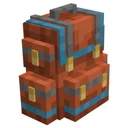
Sophisticated Backpacks · Automation · Intermediate
Backpack Automation Guide: Placing, Hoppers, Pipes & Auto-Unloading Stations
Learn how to turn your portable storage into an automated logistics hub by placing Sophisticated Backpacks directly in the world. By combining placed backpacks with vanilla hoppers, modded pipes, or Deposit and Restock upgrades, you can build instant auto-unloading stations that clear your inventory after long mining trips in seconds.
What you need
- Any tier of Backpack (Leather, Iron, Gold, Diamond, or Netherite Backpack)
- Sophisticated Core installed (required dependency)
- Hoppers or modded item pipes (such as Pipez, Mekansim Logistical Transporters, or Create Brass Funnels)
- Target storage blocks (Vanilla Chests, Barrels, or Sophisticated Storage Controller)
- Deposit Upgrade or Advanced Deposit Upgrade (optional, for instant click-unloading)
- Restock Upgrade or Advanced Restock Upgrade (optional, for instant supply refilling)
Step by step
1Place the Backpack in the World
Hold your backpack in your main hand, or keep it equipped in your chestplate/back slot if you have the dedicated keybind configured. Hold the Sneak key (Shift by default) and right-click on the top or side of any solid block. The backpack will render in the world as a physical 3D block while retaining all of its internal items, upgrades, and settings.
Tip: You can still open and configure a placed backpack by right-clicking it normally, without needing to pick it back up.
2Build a Vanilla Hopper Unloading Station
Place a vanilla Hopper directly beneath a solid temporary block, pointing into a Chest or storage network. Break the temporary block and Shift + Right-Click to place your backpack directly on top of the Hopper. The Hopper will immediately begin pulling items out of the placed backpack and pushing them into your target chest. To load items into the backpack automatically, point a Hopper into the top or any side face of the placed backpack.
Tip: Vanilla hoppers transfer items relatively slowly; if you have a massive Diamond or Netherite Backpack, consider placing it above a Hopper Minecart for significantly faster extraction.
3Connect Modded Pipes for High-Speed Extraction
If your modpack includes logistics mods, attach item pipes or ducts to any of the six faces of the placed backpack. Configure the pipe connection attached to the backpack to Extract mode, and connect the other end to your main storage controller or drawer network. Modded pipes treat the placed backpack like a standard chest, meaning you can extract entire stacks per tick depending on the pipe tier you use.
Tip: Unlike vanilla furnaces, Sophisticated Backpacks are not sided by default; pipes can both insert and extract from the top, bottom, or sides.
4Lock Slots to Protect Your Essential Gear
Before letting hoppers or pipes drain your backpack, open the backpack GUI and click the Backpack Settings button (the cogwheel icon on the right side). Select the Slot Memory and Lock settings tab. Click on the slots containing tools, food, or torches you never want extracted to lock them, or enable memory so only that specific item type can return to that slot.
Tip: To completely prevent automation from pulling out specific items, use an Advanced Filter Upgrade inside the backpack set to Block on Output.
5Set Up Instant Unloading with the Deposit Upgrade
If you do not want to place your backpack down and wait for pipes, craft a Deposit Upgrade or Advanced Deposit Upgrade in a crafting table (check JEI or REI for the exact recipe involving pistons and chest components). Open your backpack and insert the upgrade into one of the upgrade slots on the left. Configure the filter inside the upgrade GUI to match existing inventory contents, then close the UI. Now, simply Sneak + Right-Click on any Chest, Barrel, or Storage Controller while holding the backpack in your hand to instantly dump matching items.
Tip: The Advanced Deposit Upgrade gives you way more filter slots and allows you to match items by mod or tags, making it ideal for dumping raw ores into a processing chest.
6Automate Supply Refills with the Restock Upgrade
Craft a Restock Upgrade or Advanced Restock Upgrade and install it in an open upgrade slot in your backpack. Open its configuration tab on the right side of the GUI and set the filter to Pull items that already exist in your backpack (or whitelist specific consumables like Rockets, Food, and Cobblestone). When you Sneak + Right-Click a storage container holding those supplies, the backpack will instantly siphon them into your bag until your stacks are full.
Tip: You can run both Deposit and Restock upgrades simultaneously to dump loot on your main storage controller and pull building materials from a project chest in two clicks.
How it works
When a Sophisticated Backpack is worn or held in your inventory, all of its contents and upgrade configurations are stored as item data (NBT or Data Components depending on your Minecraft version) linked through Sophisticated Core. However, the moment you Sneak + Right-Click it onto a surface, the mod converts that item into a Block Entity (Tile Entity) in the world.
Because the placed backpack is a genuine Block Entity, it exposes standard item handler capabilities on all six of its block faces. When a vanilla hopper or a modded logistics pipe checks the block space above or beside it, it detects a valid inventory interface. Any internal upgrades that modify inventory rules—such as Stack Upgrades, Filter Upgrades, or Composter Upgrades—remain actively ticking and enforce their rules even while external pipes push or pull items.
By contrast, the Deposit and Restock upgrades bypass Block Entity ticks altogether. When you Sneak + Right-Click a target inventory while holding the backpack, the upgrade fires a direct inventory-to-inventory scan event. It checks the target block's item capability, compares every slot against your upgrade's filter logic, and performs an instantaneous batch transfer in a single server tick.
Common mistakes
- Forgetting to filter extraction pipes or lock slots, resulting in your unloading station draining your backup tools, arrows, and food directly into your bulk storage system.
- Trying to use the Deposit Upgrade by right-clicking while wearing the backpack on your back; you must hold the backpack in your hand and Sneak + Right-Click the target inventory for the deposit interaction to trigger.
- Breaking a placed backpack with silk touch or explosives in weird ways when your inventory is completely full, which can leave it lying on the ground vulnerable to despawning or environmental hazards. Always break it by Shift + Left-Clicking or standard mining with an open inventory slot.
- Leaving a Magnet Upgrade or Pickup Upgrade active while your backpack is placed next to an item dropper farm, causing the placed backpack to suck items out of the air before your water streams or hoppers can process them.
FAQ
Do Stack Upgrades still work when a backpack is placed in the world and connected to hoppers?
Yes. If a single slot in your backpack holds thousands of cobblestone due to Stack Upgrades, hoppers and pipes will continuously pull from that oversized stack until it is empty, and can also insert items past the vanilla 64-item limit.
Do active upgrades like Smelting or Compacting keep running when the backpack is placed as a block?
Yes. A placed backpack acts as a ticking block entity, meaning Smelting, Smoking, Blasting, and Compacting upgrades will continue processing items pulled in by hoppers or pipes as long as the chunk is loaded.
Can I use the Deposit Upgrade on a Sophisticated Storage Controller?
Absolutely. Sneak + Right-Clicking a Storage Controller or Storage I/O block with a Deposit Upgrade installed will scan the entire linked storage network and instantly route all matching items from your backpack into their designated barrels or chests.
How do I stop a pipe from pulling specific items out of my placed backpack?
Install a Filter Upgrade or Advanced Filter Upgrade inside the backpack, set its direction mode to Output (or Block Output), and place the items you want to keep inside the filter slots.
By mastering world placement for pipe automation alongside Deposit and Restock upgrades for manual one-click transfers, Sophisticated Backpacks seamlessly bridges early-game portable storage and late-game base logistics.